
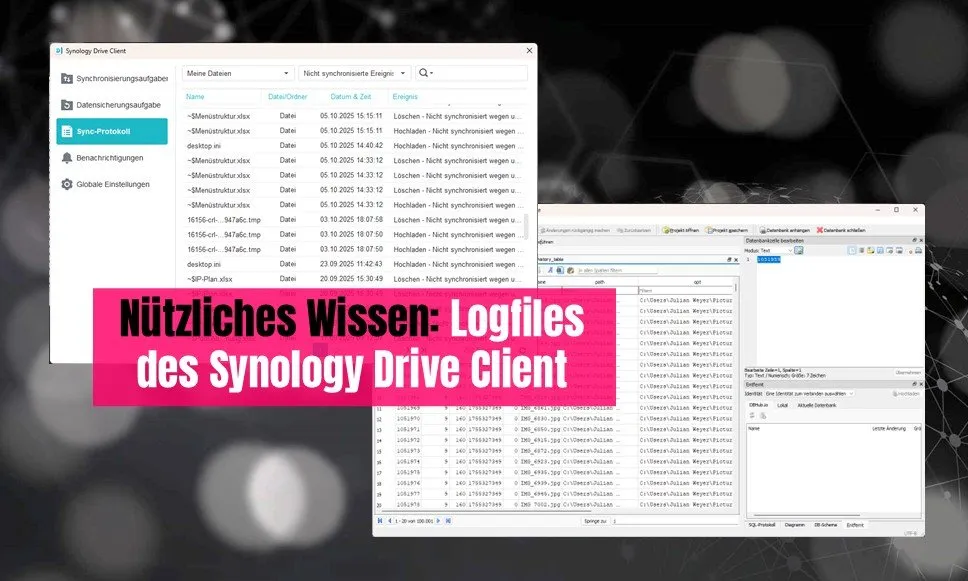

I’m a committed fan of sovereign data storage, so I run my own Synology NAS. It works great most of the time, but the odd problem does come up. When working with Synology Drive Client on Windows, I run into sync problems every now and then that aren’t easy to debug. The log view in the client UI in particular is pretty useless. After some trial and error, I found an approach that works well.
My latest problem was that some files weren’t syncing because the path was too long for Windows. So it’s not Synology’s fault, but Windows’. I wanted to fix these files, but with a few hundred of them it helps to work in a structured way and to know exactly which files are affected.
Why the default logs don’t help
Synology Drive Client for Windows (version 4.0.1 in my case) does show sync problems in the UI, but:
- The built-in log view is hardly searchable in any useful way
- The classic log files (e.g. daemon.log) in the AppData directory don’t seem to contain the errors shown in the UI
- The text logs do contain file-level information, but in my tests the problematic files couldn’t be found there (probably a different kind of log)
What actually works: the SQLite database
After some research, I found that Synology Drive Client stores its sync information in SQLite databases. On my machine they are located at:
C:\Users\[Benutzername]\AppData\Local\SynologyDrive\data\db\The relevant file: history.sqlite
Practical steps
1. Quit Drive Client
Important: quit the client completely via the taskbar icon (right-click → Quit). This writes all data from the temporary SQLite WAL file (write-ahead log) into the main database.
2. Get a SQLite tool
I use DB Browser for SQLite.
3. Open the database
- Open history.sqlite in DB Browser (tip: to be safe, work with a copy, not the original)
- Go to the “Browse Data” tab
- Select the table history_table
4. Identify problems
Relevant columns in the database:
- path – file path
- is_not_synced – sync status
- not_synced_reason – error code
Filter trick: click the column header is_not_synced and filter for = 1 to show only the files that were not synced.
Interpreting error codes
The not_synced_reason column contains negative values. This is what I’ve found out so far:
- -4096: seems to occur frequently with paths that are too long (Windows MAX_PATH limit of 260 characters)
- Other values: not officially documented, but usually possible to interpret by comparing them with the error message in the UI
Observation: even files with short paths can have -4096 (e.g. desktop.ini with only 67 characters). I don’t know the exact meaning of the codes. If anyone knows of official documentation, please let me know.
My takeaway
This approach via the SQLite database helped me much more than the text logs. The data is structured, filterable, and contains exactly the information shown in the UI, just in searchable form.
Based on experience with Synology Drive Client 4.0.1 on Windows